
MTK Offline Render - User Guide
A batch rendering tool for REAPER projects (.rpp files).
Table of Contents
- Quick Start
- Installation
- Loading Projects
- Render Sources
- Audio Settings
- Output Settings
- Batch Mode
- MP4 Video Export
- Wildcards Reference
- Troubleshooting
Quick Start
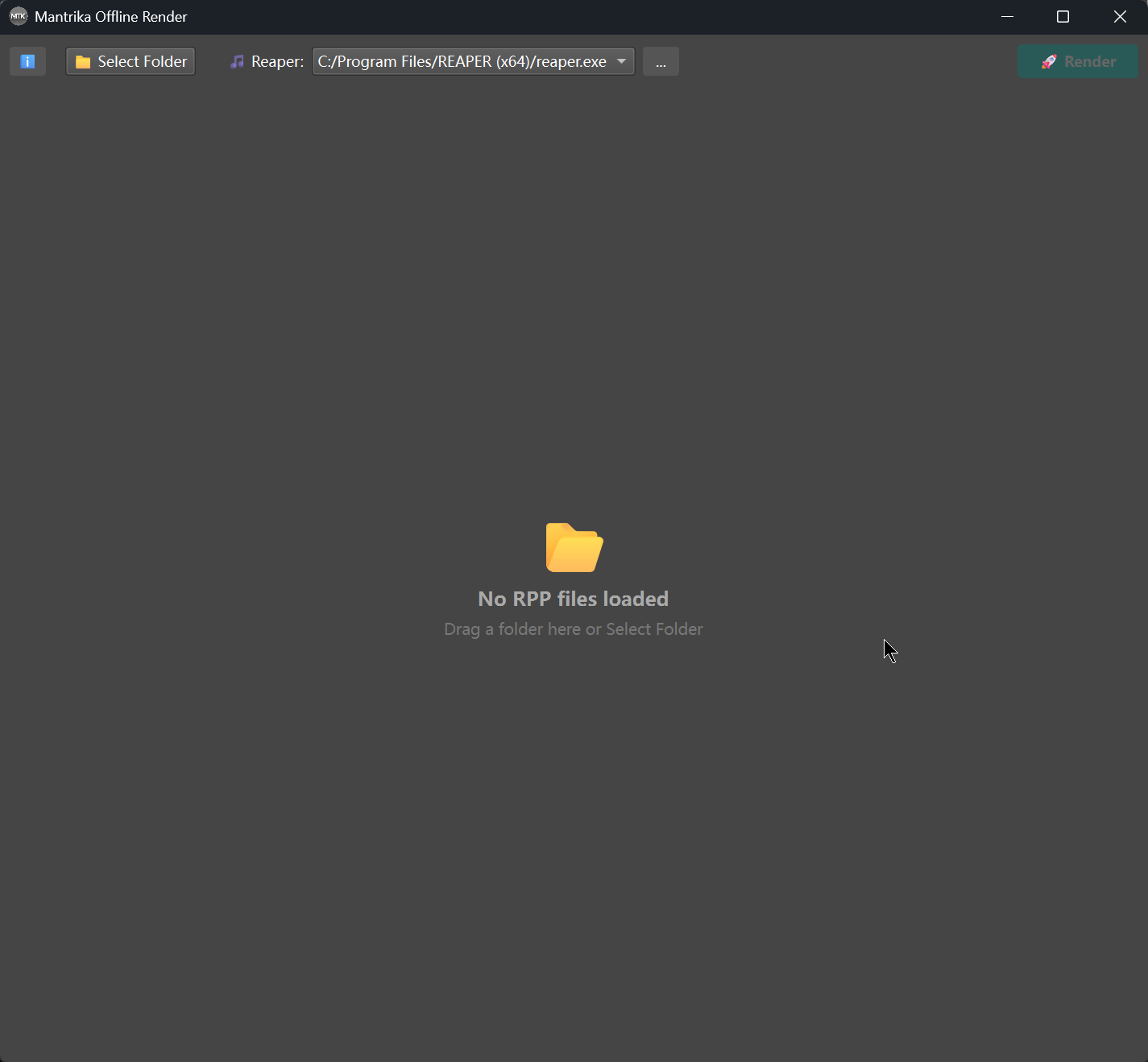
- Launch MTK Offline Render
- Drag a folder containing
.rppfiles into the window - Select your REAPER executable path
- Click 🚀 Render
Installation
Requirements
- Windows 10/11
- REAPER (any recent version)
Setup
- Extract the downloaded archive to any location
- Run
MTKOfflineRender.exe - On first launch, the tool will auto-detect REAPER installation paths
If REAPER is not detected automatically, click the ... button next to the REAPER dropdown to manually select reaper.exe.

Loading Projects
Method 1: Drag and Drop
Drag a folder containing .rpp files directly onto the application window.
Method 2: Select Folder
Click 📁 Select Folder and choose a folder. The tool will scan all subfolders recursively.
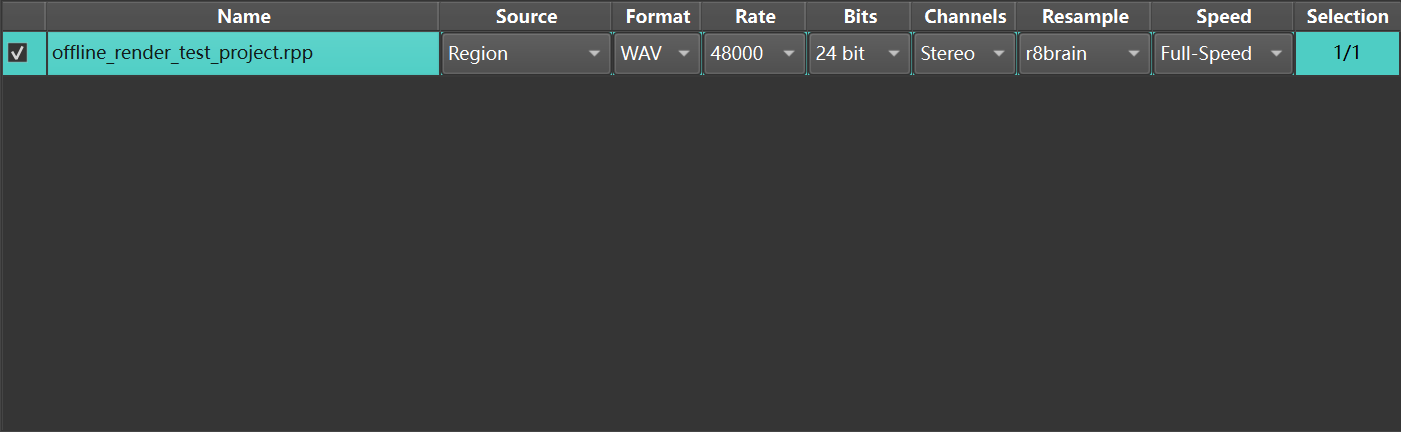
Managing the File List
| Button | Function |
|---|---|
| Check All | Select all projects for rendering |
| Uncheck All | Deselect all projects |
| Exclude Selected | Remove highlighted rows from the list |
| Clear List | Remove all projects from the list |
Render Sources
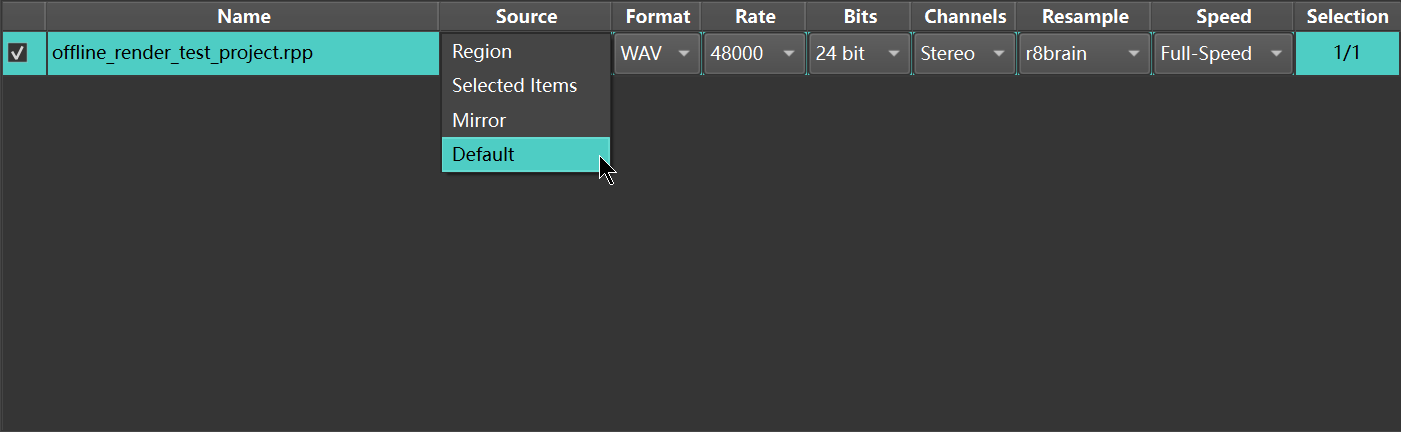
The Source column determines what content will be rendered from each project.
| Mode | Description |
|---|---|
| Region | Render each region as a separate file |
| Selected Items | Render selected items via master |
| Default | Use the project's existing render settings |
Region Mode
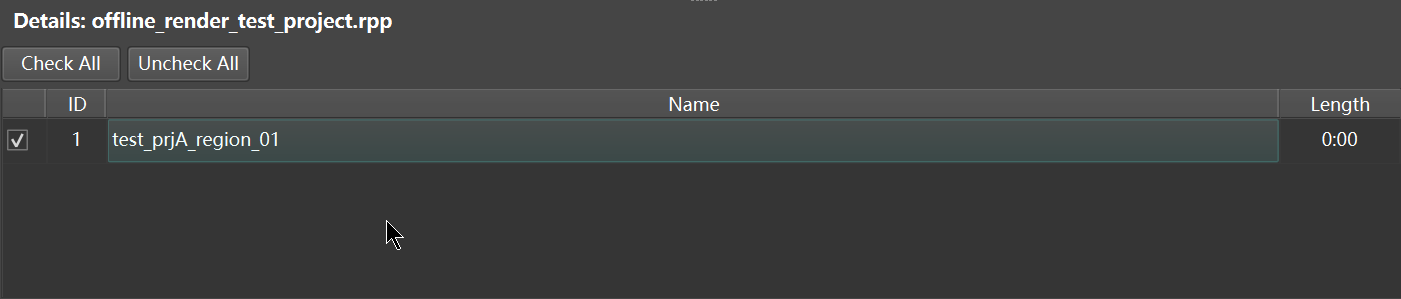
When using Region mode:
- Click on a project row to view its regions in the Details panel below
- Check/uncheck individual regions to include or exclude them
- The Selection column shows the count (e.g., "5/8" means 5 of 8 regions selected)
Selected Items Mode
Renders items that are marked as selected in your REAPER project. Use this when you've pre-selected specific items in REAPER before saving the project.
Audio Settings
Each project can have individual audio settings, or you can use Batch Mode to apply the same settings to all projects.
Available Parameters
| Setting | Options |
|---|---|
| Format | WAV, MP4 |
| Rate | 44100, 48000, 88200, 96000, 176400, 192000 Hz |
| Bits | 8, 16, 24, 32 Int, 32 FP, 64 FP |
| Channels | Mono, Stereo, 4, 6, 8 |
| Resample | Sinc 192pt, 384pt, 512pt, 768pt, r8brain |
| Speed | Full-Speed, 1x Offline, Online, Offline Idle, 1x Idle |

Note: When MP4 format is selected, the Bits setting is disabled (not applicable to video export).
Output Settings
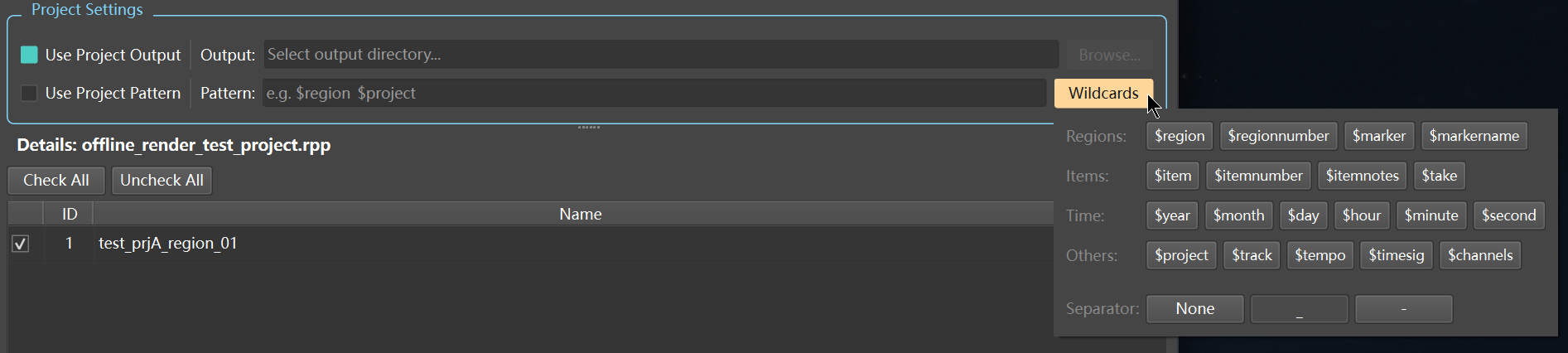
Project Settings Panel
When you select a single project row (without Batch Mode), the Project Settings panel appears:

Output Path
- Use Project Output (checked): Uses the output path defined in the
.rppfile - Use Project Output (unchecked): Specify a custom output directory
Pattern
- Use Project Pattern (checked): Uses the filename pattern defined in the
.rppfile - Use Project Pattern (unchecked): Define a custom filename pattern using wildcards
Click Wildcards to insert variables like $region, $project, etc.
Batch Mode
Batch Mode allows you to apply identical settings to all projects at once.
Enabling Batch Mode
- Check Enable Batch Mode in the Batch Mode panel
- Configure all settings in one place
- Individual column settings in the table will be hidden

When to Use Batch Mode
| Scenario | Recommended Mode |
|---|---|
| All projects need the same output format | ✅ Batch Mode |
| Each project needs different sample rates | ❌ Individual settings |
| Rendering a large number of similar projects | ✅ Batch Mode |
MP4 Video Export
Select MP4 as the output format to export video files.
Fixed Video Parameters
| Parameter | Value |
|---|---|
| Resolution | 1920 × 1080 |
| Frame Rate | 60 fps |
| Video Codec | H.264 |
| Video Bitrate | 10,000 kbps |
| Audio Codec | AAC |
| Audio Bitrate | 256 kbps |
Note: These video parameters are fixed and cannot be customized in the current version.
Wildcards Reference
Use these wildcards in your filename pattern:
Regions
| Wildcard | Description |
|---|---|
$region | Region name |
$regionnumber | Region number |
$marker | Marker name |
Items
| Wildcard | Description |
|---|---|
$item | Item name |
$itemnumber | Item number |
$itemnotes | Item notes |
$take | Take name |
Time
| Wildcard | Description |
|---|---|
$year | Year (4-digit) |
$month | Month (2-digit) |
$day | Day (2-digit) |
$hour | Hour (24h) |
$minute | Minute |
$second | Second |
Others
| Wildcard | Description |
|---|---|
$project | Project name |
$track | Track name |
$tempo | Project tempo |
$timesig | Time signature |
$channels | Number of channels |
Separator
Choose a separator to automatically insert between wildcards:
- None:
$region$project - Underscore:
$region_$project - Dash:
$region-$project
Troubleshooting
REAPER not found
Symptom: The REAPER dropdown is empty or shows an invalid path.
Solution: Click the ... button and manually navigate to your reaper.exe file. Common locations:
C:\Program Files\REAPER (x64)\reaper.exeD:\Program Files\REAPER (x64)\reaper.exe
Render fails immediately
Symptom: Render starts but fails with an error code.
Possible causes:
- The
.rppfile is corrupted or has an incompatible format - REAPER is already running with the same project open
- The output path is invalid or not writable
Solution: Try opening the project in REAPER manually to verify it loads correctly.
Temporary files left behind
Symptom: You see files with _mtktmp_ in the filename.
Explanation: These are temporary render files. The tool automatically cleans them up on startup. If they persist, you can safely delete them manually or move them to the Recycle Bin.
No regions found
Symptom: The Details panel shows no regions for a project.
Solution: Ensure your REAPER project has regions defined (not just markers). In REAPER, regions have a start and end point, while markers are single points.
Version Information
To check the current version and for updates:
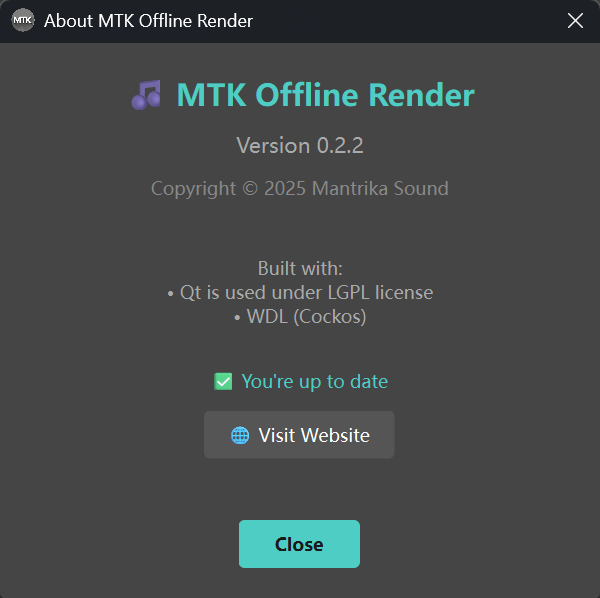
- Click the ℹ️ button in the toolbar
- The About dialog shows your version and checks for updates automatically
Feedback & Support
If you encounter issues or have feature requests, please visit the GitHub Issues page.
MTK Offline Render v0.2.2