
Spectral Forge
1. Overview
Spectral Forge is a spectral-synthesis tool in Mantrika Tools for pairing two media items. Its workflow is: select two sounds → blend them in some way → get a new sound.
Each run treats your two selected items as Source (provides the spectral “identity”) and Target (provides the spectral “shape” or “trajectory”), blends them with the chosen algorithm, renders a new WAV to <project directory>/SpectralForge/, and automatically creates a new output track with the same name and places the new item there. The original two items are left untouched.
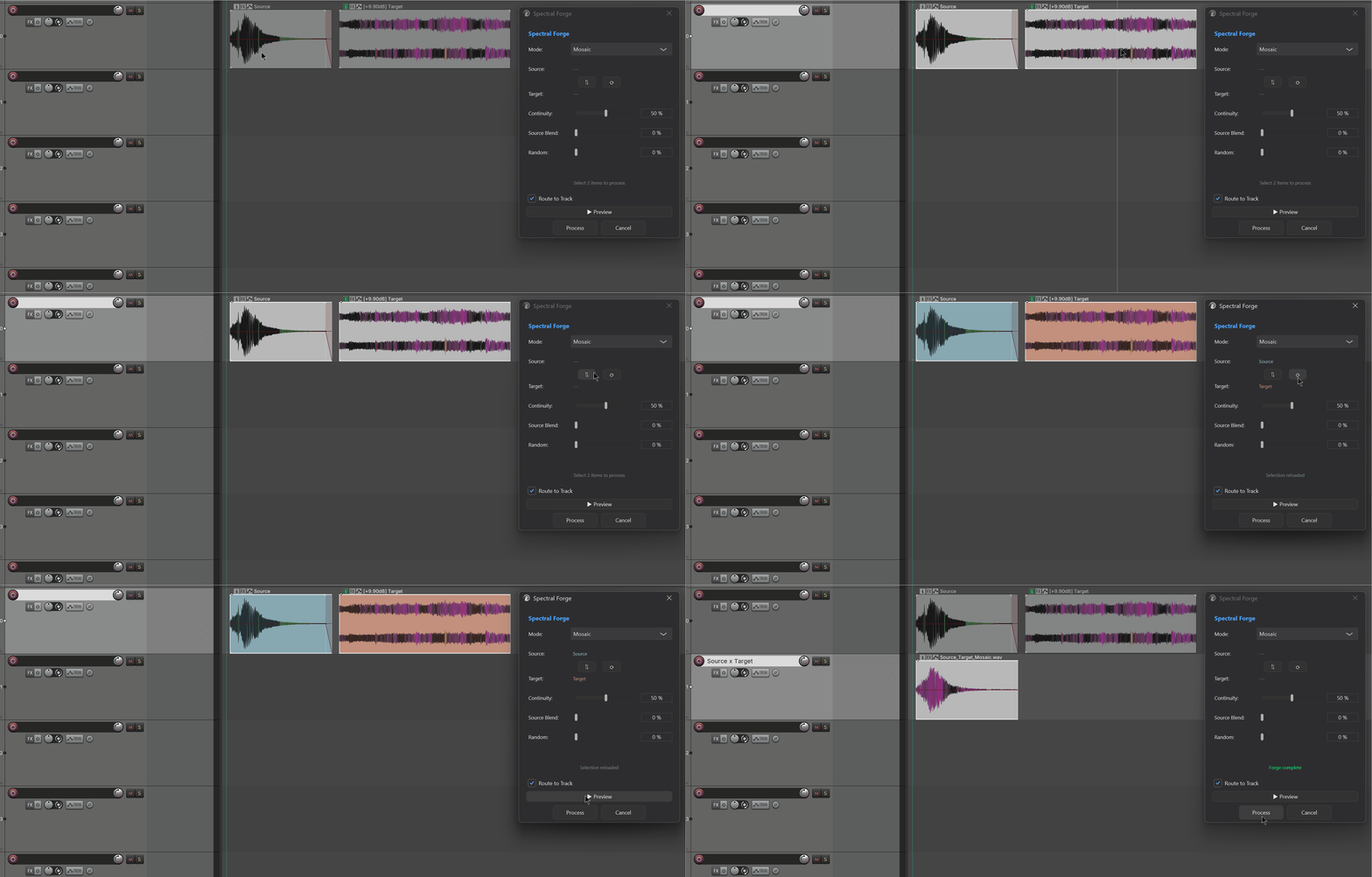
Three synthesis algorithms:
- Morph (OT): Optimal-Transport-based spectral morphing that interpolates along a frequency trajectory between Source and Target.
- Cross-Synthesis: Takes the spectral envelope from one item and the excitation from the other, producing “say B’s content with A’s tone color.”
- Mosaic: Searches Source’s spectrum frame by frame for the fragment that best matches each Target frame, then stitches them together. The result “sounds like Source but follows Target’s rhythm/trajectory.” Every algorithm lets you Preview before you Process.
2. Opening Spectral Forge
Menu entry:
Extensions → Mantrika Tools → Spectral forgeActions (search “Spectral” in the Action List):
| Action Name | Purpose |
|---|---|
mantrika : Process - Spectral Forge | Open / close the Spectral Forge window (toggle) |
mantrika : Process - Create Spectral Transition for Overlapping Items | Sibling action: for two items that already overlap, generates a “tone transition” item over the overlap region without opening the main window |
3. Main Window Overview
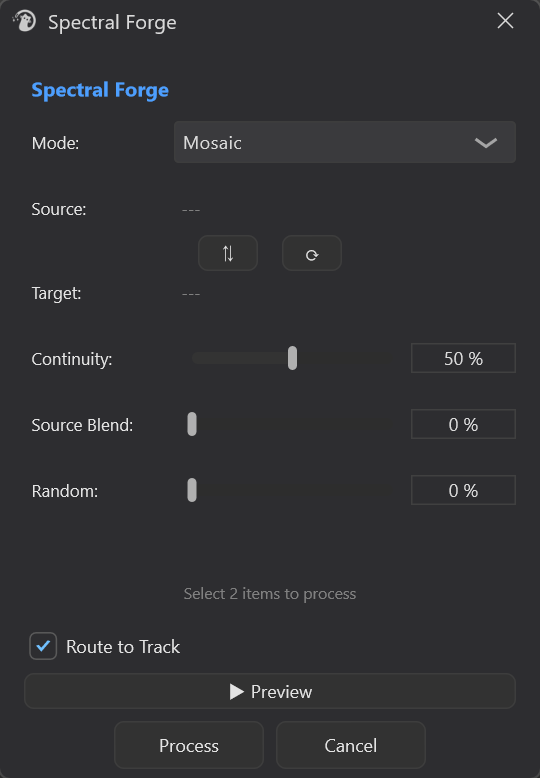
| Control | Description |
|---|---|
| Mode | Choose one of the three algorithms; see §5 |
| Source / Target labels | Names of the two paired item takes (extension removed). --- = nothing selected yet |
⇅ Swap | Swap Source and Target (colors and labels swap together) |
⟳ Reload | Re-detect Source/Target from the current REAPER selection |
| Algorithm parameter knobs | Change with Mode; see §5 |
| Route to Track | Whether the Preview is routed through the FX chain of the track that holds the Source item |
| ▶ Preview | Renders in the background and plays but does not save; while playing the same button becomes ■ Stop |
| Process | Renders in the background, writes the file, and automatically creates a track + item; while running the button becomes Cancel |
| Cancel | Close the window (also cancels any running Preview/Process and restores item colors) |
The window height adjusts automatically for the current Mode.
4. Rules for Selecting Items
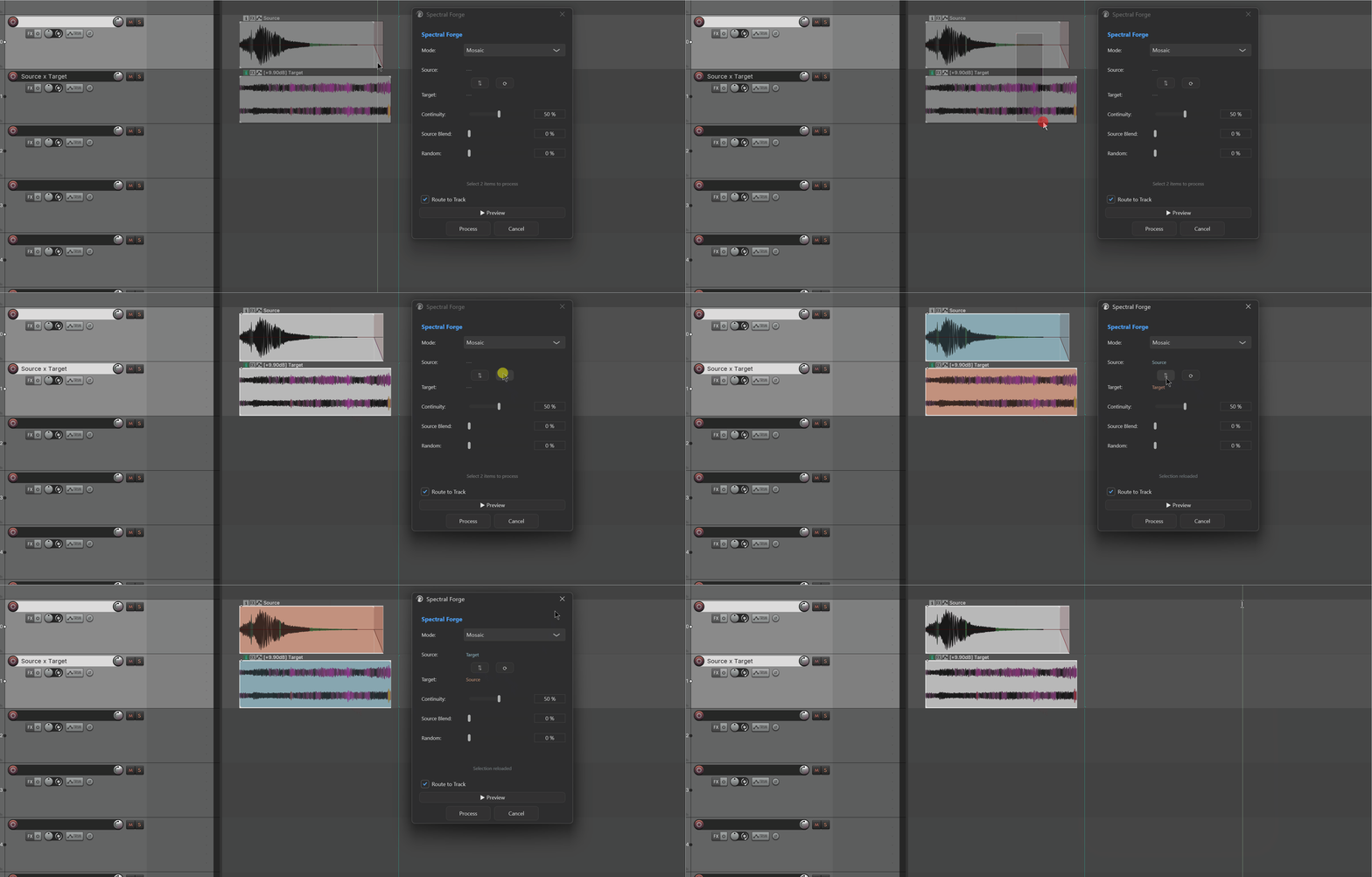
1. Select exactly 2 audio items in the Arrange view (must be audio; MIDI / empty takes are rejected)
2. Trigger “Process - Spectral Forge” to open the window
3. The window automatically pairs Source / Target and colors the two items:
 · Source = cyan (#4A7A8A)
 · Target = orange-red (#A35A3D)
4. The colors let you see at a glance which is which in the Arrange view
Auto-pairing rules:
| Situation | Who Becomes Source |
|---|---|
| Two items on different tracks | The one on the higher track |
| Two items on the same track | The one that is earlier in time |
Not happy with it? Click ⇅ to swap instantly.
Closing the window / successful Process / Cancel automatically restores the two items' original colors — no cyan/orange residue is left behind.
To change items, select two new ones in REAPER and click ⟳ in the window.
5. The Three Algorithms
5.1 Morph (OT)
Purpose: Slide Source’s spectrum toward Target’s spectrum along the frequency axis. Unlike a simple crossfade, Optimal Transport (OT) shifts each spectral line to its corresponding position, giving a more continuous morph. Good for sound-morphing effects.
| Control | Range | Description |
|---|---|---|
| Interpolation | 0–100 % | 0% = entirely Source; 100% = entirely Target; 50% = halfway |
| OT Strength | 0–100 % | 0% = degrades to a normal crossfade; 100% = full spectral slide; in between is a blend of the two behaviors |
How to tune: start with Interpolation at 50% and listen, then adjust OT Strength to control how “morph-like” the transition feels — high OT sounds more like a slide/morph, low OT sounds more like a superposition of the two sounds.
Best for: gradually turning sound A into sound B, or creating intermediate states between two sounds.
5.2 Cross-Synthesis
Purpose: Take the spectral envelope (tone-color “shape”) from Target and the excitation (residual / “who is speaking”) from Source, then multiply them. The intuitive result: “say B’s content with A’s tone color.”
| Control | Range | Description |
|---|---|---|
| Envelope Detail | 0–100 % | 0% = smooth envelope (only broad tone coloring); 100% = detailed envelope (preserves more formant detail) |
Source / Target roles:
- Source provides excitation (the driving signal / energy distribution).
- Target provides envelope (tone color / formant shape).
- Want to swap roles? Click ⇅.
Best for: vocoder-style effects, vocal re-coloring, dressing a rhythmic source in another timbre.
5.3 Mosaic
Purpose: Slice Source into small frames and search frame by frame for which Source frame best matches the current Target frame, then string the matched Source frames together. The result “rebuilds Target’s trajectory using Source’s material library.”
| Control | Range | Description |
|---|---|---|
| Continuity | 0–100 % | 0% = each frame independently picks the best match (jumpy); 100% = strong continuity (prefers frames near the previous one, smoother) |
| Source Blend | 0–100 % | 0% = pure collage; 100% = identical to Source spectrum; in between blends the collage result with Source |
| Random | 0–100 % | 0% = fully deterministic (same input always gives same output); 100% = maximum randomness, picks randomly from candidate frames |
About the random seed:
- Once you raise Random, each Preview uses a new random seed → press Preview several times to try different “random variations.” Once you press Process, it uses the seed from the most recent Preview (if any), so what you hear is what you get.
- If you Process without ever Previewing, a new seed is used.
Best for: sound-design tasks like “redo B with A’s texture” or generating granular variants that retain Source’s character.
6. Preview and Process Workflow
6.1 Preview
1. Choose Source/Target, Mode, and parameters
2. Click [▶ Preview]
3. Wait a few seconds → status shows “Previewing...” → listen to the result
4. To stop midway, click the same button (now [■ Stop])| Option | Behavior |
|---|---|
| Route to Track (persistent toggle) | Off: Preview goes to REAPER’s main output (dry). |
| On: Preview is routed through the FX chain of the track that holds the Source item, making it easy to compare the sound after the plug-in chain. |
Preview does not write files or move items. Change parameters and click Preview again to hear a new result.
6.2 Process (Render)
1. When you are happy with the Preview, click [ Process ]
2. Status changes to “Processing...” and the button becomes Cancel
3. When done, status changes to “Forge complete”.
Output placement:
- WAV file:
<project directory>/SpectralForge/<source>_<target>_<Mode>.wav(if the name already exists, a serial number is appended automatically) - A new track named
<source> x <target>is created directly below the Source item’s track - The new item is placed at the Source item’s time position and its length follows the rendered result
- The new item inherits the Source item’s playback gain
- Focus returns to the main REAPER window when finished
7. Status Feedback
The status bar tells you what is happening:
| Status Text | Meaning |
|---|---|
Select 2 items to process / Select 2 audio items | Idle / invalid selection |
Selection reloaded | You clicked ⟳ to re-detect |
Selected items are no longer valid | You deleted or moved the paired Source/Target items after opening the window |
Processing... / Processing preview... | Background rendering in progress |
Previewing... / Preview ended / Preview stopped | Preview stage |
Forge complete | Process succeeded and the new item is in place |
Process failed: <reason> / Preview failed: <reason> | Failure; reason shown |
Failed to read source/target audio | Audio read failed during preparation |
Failed to create output directory | Could not create the SpectralForge directory (project not saved? disk read-only?) |
8. Preference Persistence
| Setting | Persisted? |
|---|---|
| Last selected Mode | ✅ |
| Route to Track toggle | ✅ |
| Algorithm knob values | ❌ (reset to defaults each time the window opens) |
| Last random seed | ❌ (only reused within the same session when Process follows Preview) |
To quickly reset a knob, right-click or double-click it — this usually returns it to the default value.
9. Keyboard / Mouse Quick Reference
| Operation | Behavior |
|---|---|
Trigger Process - Spectral Forge | Open / close the window |
| Enter | Same as clicking Process |
| Process button (while processing) | Becomes Cancel; click to abort |
| Preview button (while playing) | Becomes ■ Stop; click to stop |
⇅ Swap | Swap Source / Target (including colors) |
⟳ Reload | Re-pair from the current REAPER selection |
| Close window (X / ESC) | Automatically cancel processing + stop preview + restore item colors |
10. Typical Workflows
Workflow A: Turn a Metal Impact into a Sustained Ambience
1. Select the two items: metal_clank (short) and ambient_wash (long)
2. Open Spectral Forge
3. Check Source = metal_clank (cyan) and Target = ambient_wash (orange-red)
 If reversed, click ⇅
4. Mode = Morph (OT)
5. Preview Interpolation at 30 / 50 / 70 and listen
6. When satisfied, click Process
Workflow B: Make a Synth Pad “Speak”
1. Select vocal_phrase (the “words”) and synth_pad (the “tone color”)
2. Open the window
3. Make Source = vocal_phrase (provides excitation) and Target = synth_pad (provides envelope)
 — arrange the items using the “higher track / earlier position = Source” rule, or just click ⇅
4. Mode = Cross-Synthesis
5. Try Envelope Detail between 30–60%
6. Process
Workflow C: Rebuild Wind Movement with a Stone Scrape Texture
1. Select stone_scrape (Source material library) and wind_long (Target trajectory)
2. Source = stone_scrape; Target = wind_long
3. Mode = Mosaic
4. Set Continuity to 60–80% to avoid frame-to-frame jumps
5. Press Preview a few times (each uses a new seed) → pick a version you like → Process
 ★ Process reuses the seed from the last Preview, so what you hear is what you get
11. Troubleshooting
| Symptom | Cause | Fix |
|---|---|---|
Source / Target shows --- | Selection does not contain exactly 2 audio items, or includes MIDI | Select exactly 2 audio items and click ⟳ |
Status says Selected items are no longer valid | You deleted or moved the paired items | Select the items again and click ⟳ |
Status says Failed to read source/target audio | Source file unreadable / corrupt | Check the source file and whether the take is valid |
Status says Failed to create output directory | Project not saved / project directory read-only | Save the project and confirm write permission |
| Preview and Process sound different (Mosaic) | You changed the Random knob after Preview, or closed and reopened the window | Follow Preview → Process immediately without changing Random |
| No new item after Process | Look one track below the Source item’s track; it may be out of view | Scroll the Track Control Panel to just below the Source track |
| Item colors remain after closing | Rare (usually from an abnormal exit) | Select the item → Item Properties → clear the custom color |
| Process seems stuck | Large items (several minutes) take time to synthesize; the progress bar is indeterminate | Wait, or Cancel and try shorter source material |